Super Mario Worker Project 迎来全新 v1.8 版本 (The Rebuild Update),这是 SMWP 开源后的第一次大版本更新。
v1.8 将主程序引擎升级至 Game Maker 8.2,并进行了大量基础建设工作,为后续更新打下基石;编辑器升级,新增缩放、选区、快捷跳转等新特性,并实现所有按键可自定义;新增叶子道具,收集后变身为浣熊装马里奥;半开放式自动滚屏,带来更多设计空间;新增花瓣探照灯、刺壳等新敌人;内置实验性的联机功能,支持最多 8 名玩家同时编辑同一关卡。
v1.8 也是 Mario Worker 4.0 发布二十周年的纪念版本。
底层革新
Super Mario Worker Project 自诞生以来就一直基于 Game Maker 8.0 引擎开发。v1.8 将主程序引擎升级至 Game Maker 8.2,并配合底层代码重构,为后续增添新特性铺平道路。
引入了全新的信息文本绘制插件,从绘制层彻底重写了文本渲染逻辑,彻底修复了部分新硬件设备上无法启动 SMWP 的问题。
采用全新开发的 SMWGZip DLL 替代原有方案,SMWP 不再依赖 .NET Framework 4 运行时。
v1.8 默认使用 UTF-8 编码保存关卡,并新增编码转换扩展,支持将旧版关卡的 GB2312 编码文本转换为 UTF-8。
编辑器改进
v1.8 新增编辑界面缩放功能,关闭侧边面板后,可使用 Ctrl + 鼠标滚轮 或 + / - 键对编辑界面进行缩放。

编辑界面新增 PgUp / PgDn 快捷键,可快速在起点与各个 Check Point 所在位置之间快捷跳转。

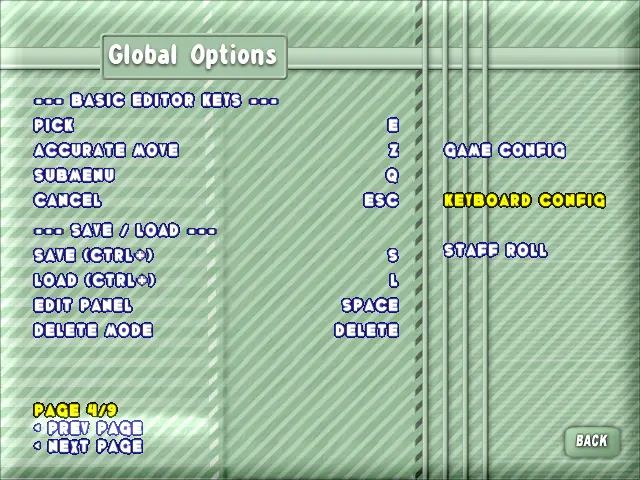
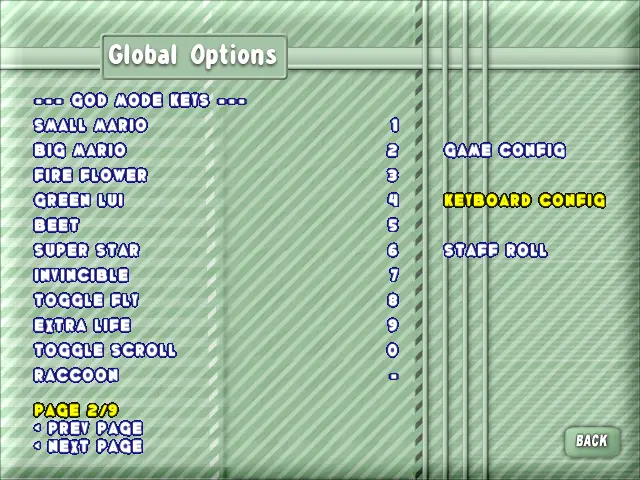
编辑界面的按键现已支持在全局设置中修改;F9 截图功能现支持自定义快捷键,同时支持修改截图保存路径(目前需要在 GameSettings.ini 中手动修改)。
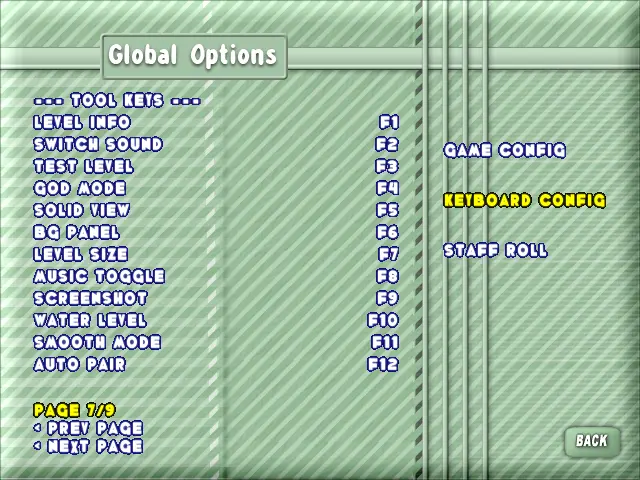
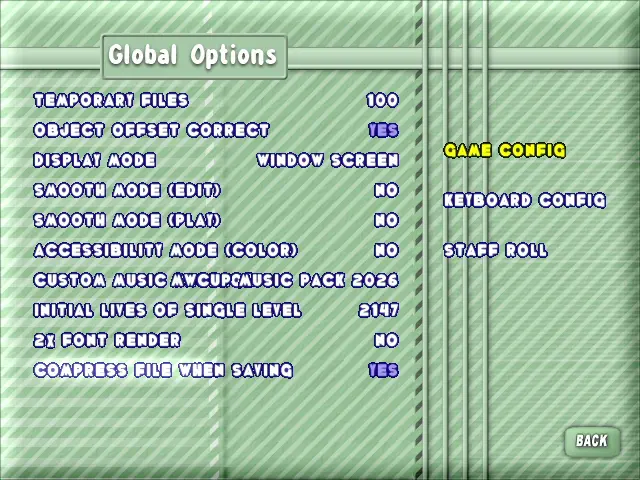
全局设置新增「保存关卡时是否压缩」选项,默认开启。关闭该选项后,保存关卡时将跳过 GZip 压缩,直接保存文件。
选区系统

v1.8 为编辑界面带来了选区功能。选取功能支持移动/复制选区,并有三种(ANY / FULL / HALF)选取模式。
基本操作
- 按下
U键 进入选区模式(Region Mode)。 - 在编辑区内按住鼠标左键拖拽,画出一个矩形选框。
- 松开鼠标后,框内被选中的所有内容会以绿色高亮标出,包括砖块、敌人、景物、标记、奖励等各类元素。
- 将鼠标移到选区内部,按住左键拖动即可整体移动。
- 松开鼠标,选区即在新位置落定。
选取模式(T 键循环切换)
ANY(任意相交):物件只要与选框存在重叠即可被选中,适合快速圈选。FULL(完全包含):只有完整落在选框内的物件才会被选中,适合精确批量操作。HALF(半覆盖):重叠面积达到一半以上的物件被选中,介于两者之间。
移动时的细节规则
- 砖块沿 32px 网格(一格)对齐移动,并在释放后自动吸附至完整格位;敌人等实例则按照 16px 半格精确平移。
- 移动范围会被自动钳制在房间边界内,不会出现选区被拖出地图外丢失的情况。
- 拖动过程中会显示半透明的「幽灵预览」,方便确认落点;松手后才会真正写入关卡数据。
- 强制卷轴等特殊元件在移动时会自动保持其规则(如卷轴中心对齐),无需手动微调。
选区复制
- 框选目标区域后(保持选中状态即可,无需进入移动模式),按住
Ctrl + C(复制键,可在设置中修改)。 - 此时选区进入「复制模式」,直接拖动鼠标。
- 拖动时你可以看到整个选区的半透明副本跟随光标移动,原件保留不动。
- 松手后,副本在新位置生成,并且选区自动切换到新生成的副本上——这意味着玩家可以连续使用
Ctrl + C进行复制,快速铺设大量重复结构(例如连续多个问号砖阵、成片的敌人配置)。
新道具与新敌人
叶子与浣熊装

本次更新加入了全新的变身道具——叶子,收集后即可变身为浣熊装马里奥。
基本特性
- 空中缓降:下落时按住跳跃键即可缓缓飘落。
- 奔跑飞行:助跑冲刺后腾空而起,在空中持续滑翔飞行。

- 扫尾攻击:按攻击键挥动尾巴,可以像马里奥三代一样击退敌人。
高级技巧

- 下落的时候,如果进行扫尾攻击并击败敌人,那么不会触发踩踏。

- 如果在奔跑飞行状态时踩踏敌人,那么飞行时间将会重置。
刺壳

新增静止刺壳与运动刺壳两种龟壳。

花瓣探照灯
新增花瓣探照灯。传统探照灯的半径固定,而花瓣探照灯的特点在于其半径可以周期性变化,如同花瓣开合一般。
编辑方式
- 放置花瓣探照灯后,首先左键确认旋转速度,进入最大半径设置阶段。
- 在编辑区点击鼠标,设置探照灯的最大半径(自动吸附至 32px 网格)。
- 使用鼠标滚轮调整半径变化速度。
半开放式自动滚屏
v1.6 引入的强制滚屏物件在本次更新中迎来了重要升级——半开放式自动滚屏。
与原有强制滚屏不同,半开放式自动滚屏在跟随节点运动时,垂直方向的滚屏是自由的,带来了更多设计空间。
核心特性
- 半开放:相对节点运动垂直部分的滚屏是自由的。也就是说,镜头沿滚屏链水平推进的同时,垂直方向依然保留了玩家操作的余裕,实现压迫感与自由度的平衡。

- 橙色节点转向绿色节点的过渡:如果节点运动到绿色节点时镜头与绿色节点仍有距离,那么镜头会先强制朝向绿色节点运动,确保滚屏衔接丝滑不露馅。

- 如果以橙色节点结束:运动结束前的相对运动垂直部分的滚屏自由依然有效。
新增选项

Additional Settings 新增选项:处于向下运动的强制滚屏时,可以令向上出屏的玩家死亡。
多人联机
编辑器内置实验性的多人联机功能,支持最多 8 名玩家同时编辑同一关卡。
连接方式
- 在编辑器的网络控制台中点击
HOST LOCAL/HOST LAN创建房间,房主即主机。 - 其他玩家点击
JOIN,输入房主 IP(默认端口51234)即可加入。 - 加入后支持
RENAME修改昵称、CHAT聊天、LEAVE离开。
协作同步机制
- 光标实时显示:每位玩家的鼠标光标会在其他玩家的编辑器上实时呈现。
- 实时增量同步:任何玩家进行放置、删除、移动、参数修改等操作,变化会即时同步至所有客户端。
- 全量同步:新玩家加入时,房主会将完整关卡文件分块传输给新玩家,确保双方基础数据一致;传输完成后立即开始协同编辑。
Super Mario Worker Project has reached the all-new v1.8 (The Rebuild Update), the first major release since SMWP became open source.
SMWP v1.8 upgrades the engine to Game Maker 8.2 and introduces extensive foundational improvements, laying the groundwork for future updates. The editor has also been upgraded with new features such as zooming and Region Mode, and quick navigation, while making all key bindings customizable. A new Leaf powerup has been added, transforming Mario into Raccoon Suit when collected. Semi-open autoscroll opens up more design possibilities. New enemies including the Petal Roto-Disc and Spiny Shells have also been added. In addition, an experimental built-in multiplayer feature supports up to 8 players editing the same level simultaneously.
This version is released to commemorate the 20th anniversary of Mario Worker 1.1 (4.0).
Under the Hood
Super Mario Worker Project has been developed on Game Maker 8.0 since its inception. v1.8 upgrades the engine to Game Maker 8.2 and refactors the codebase, laying the groundwork for future features.
A new text rendering plugin has been introduced, completely rewriting the text rendering logic at the drawing layer. This fully resolves the issue that prevented SMWP from launching on certain newer hardware.
The previous solution has been replaced with a newly developed SMWGZip DLL, so SMWP no longer depends on the .NET Framework 4 runtime.
SMWP v1.8 uses UTF-8 as the default encoding for saving levels and introduces an encoding conversion extension that can convert text encoded in GB2312 from legacy levels to UTF-8.
Editor Improvements
SMWP v1.8 adds an editor zoom feature. When the panel is closed, use Ctrl + Mouse Wheel or the + / - keys to zoom the editor.
The editor now supports PgUp / PgDn shortcuts for quickly jumping between the starting position and each Check Point.
Editor key bindings can now be customized in Global Options. The screenshot feature also supports a customizable shortcut, and the screenshot save path can be changed as well (currently, this must be modified manually in GameSettings.ini).
Global Options now includes a “Compress when saving” option, enabled by default. When disabled, GZip compression is skipped when saving a level.
Region Mode
SMWP v1.8 brings Region Mode to the editor. It supports moving and copying selected regions, with three selection modes: ANY, FULL, and HALF.
Basic Operations
- Press
Uto enter Region Mode. - Hold the left mouse button and drag within the editing area to draw a rectangular selection box.
- Release the mouse button. All selected content within the box will be highlighted in green, including blocks, enemies, scenery, marks, and powerups.
- Move the cursor inside the selected region, then hold the left mouse button and drag to move the entire selection.
- Release the mouse button to place the selection at its new position.
Selection Modes (Toggle with T)
ANY(Any Intersection): An object is selected as long as it overlaps the selection box. Suitable for quickly selecting objects in an area.FULL(Fully Contained): Only objects completely contained within the selection box are selected. Suitable for precise batch operations.HALF(Half Covered): Objects with at least half of their area overlapping the selection box are selected, providing a middle ground between the two modes.
Movement Rules
- Blocks move aligned to the 32px grid (one tile) and automatically snap to a full tile when released. Instances such as enemies are moved precisely in 16px increments.
- The movement range is automatically clamped to the room boundaries, preventing the selection from being dragged outside the level.
- A semi-transparent “ghost preview” is displayed while dragging, allowing the player to preview the destination. The level data is only updated after the mouse button is released.
- Special objects such as autoscroll object automatically retain their rules when moved, without requiring manual adjustment.
Copying a Region
- After selecting the desired area (simply keep the selection active; there is no need to enter move mode), press
Ctrl + C(can be customized in Global Options). - The selection then enters Copy Mode; simply drag the mouse.
- While dragging, a semi-transparent copy of the entire selection follows the cursor while the original remains in place.
- Release the mouse button to create the copy at the new position. The selection automatically switches to the newly created copy, allowing the player to press
Ctrl + Crepeatedly to quickly place large numbers of repeated structures, such as rows of ?-blocks or groups of enemies.
New Powerup and New Enemies
Leaf and Raccoon Suit
This update introduces a brand-new powerup: the Leaf. Collecting it transforms Mario into Raccoon Mario.
Basic Features
- Slow descent: Hold the jump key while falling to descend slowly.
- Running flight: After building up speed with a running dash, take off and glide through the air.
- Tail swipe: Press the attack key to swing the tail and knock back enemies, just like in Super Mario Bros. 3.
Advanced Techniques
- If the player performs a tail swipe while falling and defeats an enemy, it will not trigger a stomp.
- If the player stomps an enemy while in running flight, the flight timer will reset.
Spiny Shell
Two new shell types have been added: the Stationary Spiny Shell and the Moving Spiny Shell.
Petal Roto-Disc
Added the Petal Roto-Disc. Traditional Roto-Discs have a fixed radius, while the Petal Roto-Disc’s radius changes periodically, opening and closing like flower petals.
How to Edit
- After placing a Petal Roto-Disc, left-click to confirm its rotation speed and enter the maximum radius setting stage.
- Click in the editing area to set the Roto-Disc’s maximum radius (automatically snapped to the 32px grid).
- Use the mouse wheel to adjust the radius change speed.
Semi-open Autoscroll
The autoscroll object introduced in SMWP v1.6 receives a major upgrade in this update: semi-open autoscroll.
Unlike the original autoscroll object, semi-open autoscroll allows free vertical scrolling while following the nodes, providing more possibilities for level design.
Core Features
- Semi-open: Vertical scrolling relative to the node’s movement remains free. In other words, while the camera advances horizontally along the autoscroll path, the player still retains freedom of movement vertically, balancing the sense of pressure with player freedom.
- Transition from an orange node to a green node: If the camera is still some distance away from the green node when the autoscroll reaches it, the camera will first be forced toward the green node, keeping the scroll transition seamless.
- Ending at an orange node: The freedom of vertical scrolling relative to the node’s movement remains in effect until the movement ends.
New Option
Additional Settings adds a new option that allows the player who leaves the top of the screen to be killed during downward autoscroll.
Editing with Multiplayer
The editor now includes an experimental multiplayer feature that allows up to 8 players to edit the same level simultaneously.
How to Connect
- Click
HOST LOCAL/HOST LANin the editor’s network console to create a room. The player who creates the room becomes the host. - Other players can click
JOINand enter the host’s IP address (default port51234) to join. - After joining, players can use
RENAMEto change their nickname,CHATto chat, andLEAVEto leave the room.
Collaboration Sync
- Real-time cursors: Each player’s mouse cursor is displayed in real time in the other players’ editors.
- Incremental synchronization: Any operation such as placing, deleting, moving, or modifying the parameters of an object is immediately synchronized to all clients.
- Full synchronization: When a new player joins, the host transfers the complete level file to the new player in chunks, ensuring that both sides have consistent base data. Collaborative editing begins immediately after the transfer is complete.